My iPhone storage is almost full, and I noticed apps taking up a lot of space in iPhone Storage. I want to free up storage without deleting the actual apps because I still use them every day. Is there a way to delete app data, cache, or documents on iPhone without removing the apps?
Your iPhone storage screen is misleading in a way that trips up a lot of people. I ran into the same mess. You look at your apps, count maybe 20 of them, none seem huge, then ‘Applications’ is eating a giant chunk of storage. Feels wrong, but iOS is counting more than the app download itself.
‘Applications’ includes a few different things:
User data. Logins, saved settings, downloaded content, preferences.
Support files. Extra resources, language files, stuff the app needs in the background.
Cache. This is usually the big one. Social apps save images and videos locally. Games keep assets around. Browsers hold site data. Over time, this pile gets fat even when you install nothing new.
So yeah, the number grows from usage, not only from new apps.
There’s also a split between ‘Applications’ and ‘System Data.’ People mix those up a lot. Application storage is tied to apps you installed. System Data is iPhone-side stuff like fonts, Siri voices, logs, dictionaries, and indexing files. Both grow. You get more control over the app side.
If you want space back without wiping the phone, I’d start here:
Offload apps:
Go to Settings > General > iPhone Storage.
Pick an app.
Tap ‘Offload App.’
This removes the app itself but keeps its documents and data. When you reinstall it, your stuff is still there. I used this on apps I hadn’t touched in weeks and it helped fast.
Clear cache inside apps:
Some apps let you do it from their own settings. Telegram does. Safari too, from the main iPhone settings:
Settings > Safari > Clear History and Website Data
For apps with no cache button, the old dumb fix still works best. Delete the app, reinstall it. Annoying, yes. Effective, also yes.
I learned this after my phone started acting busted. Camera opened slow. Apps crashed. The ‘Storage Almost Full’ warning kept popping up. Once free space gets too low, iOS starts dragging. From what I saw, keeping around 6GB free makes a difference. The system needs room to shuffle files around.
I tried cleaning everything by hand and got tired of chasing hidden junk. In the end I used a cleanup app to sort files faster. The one I found was Clever Cleaner:
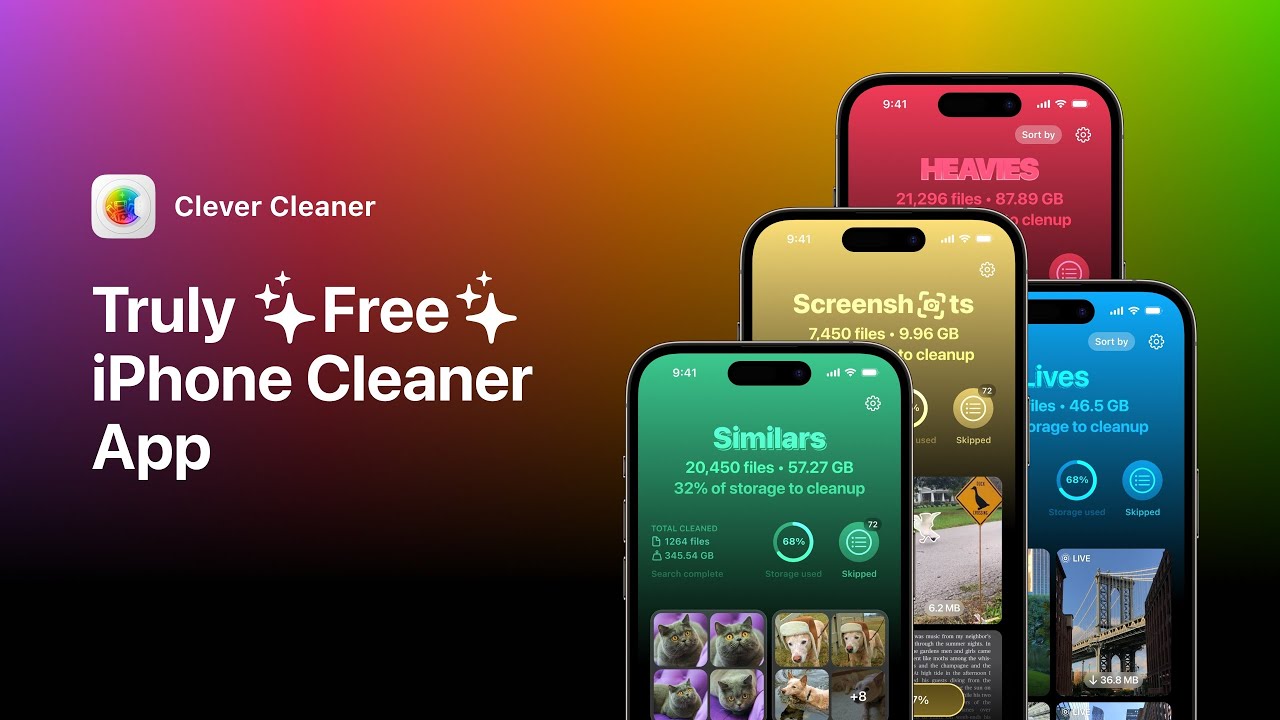
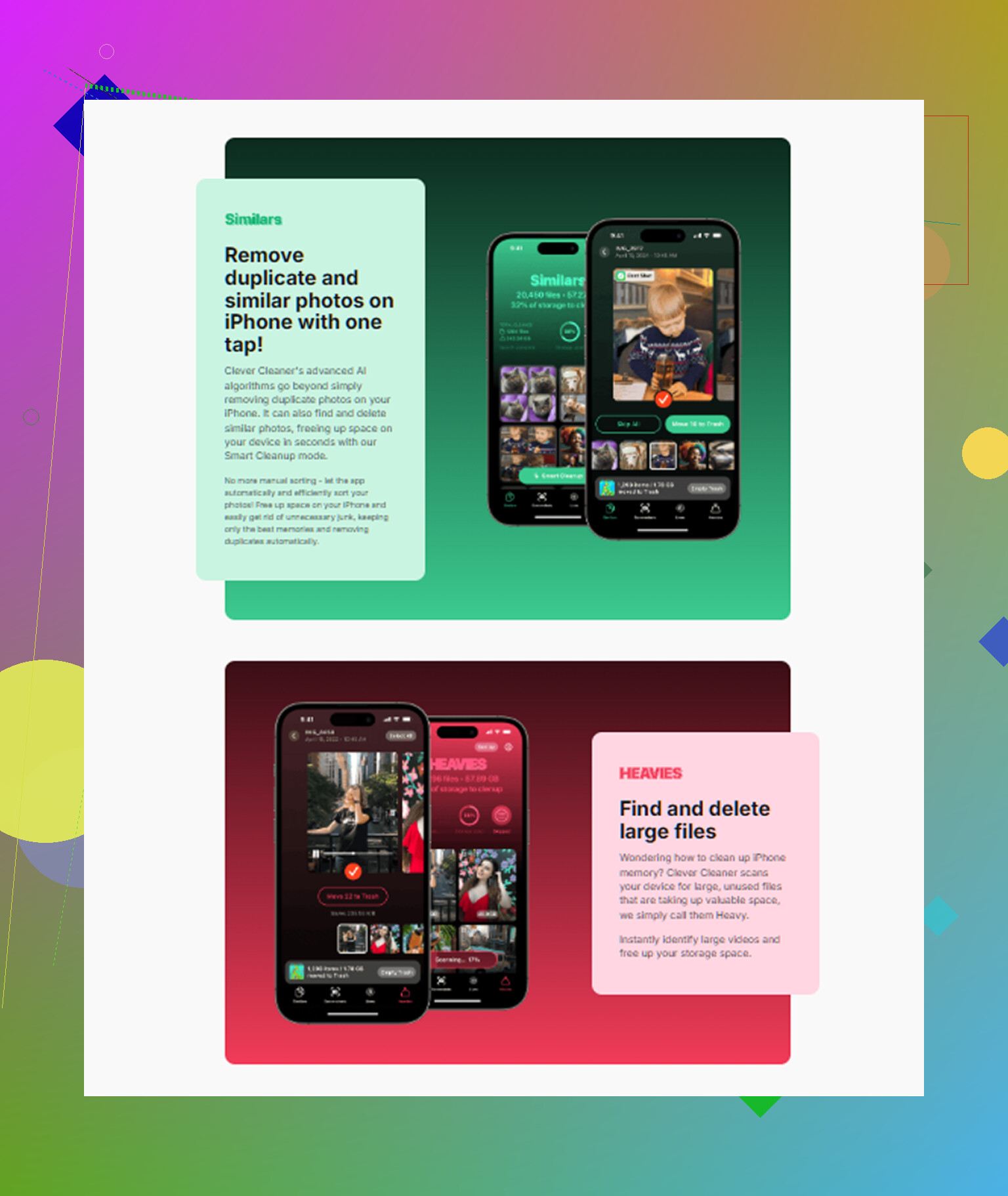
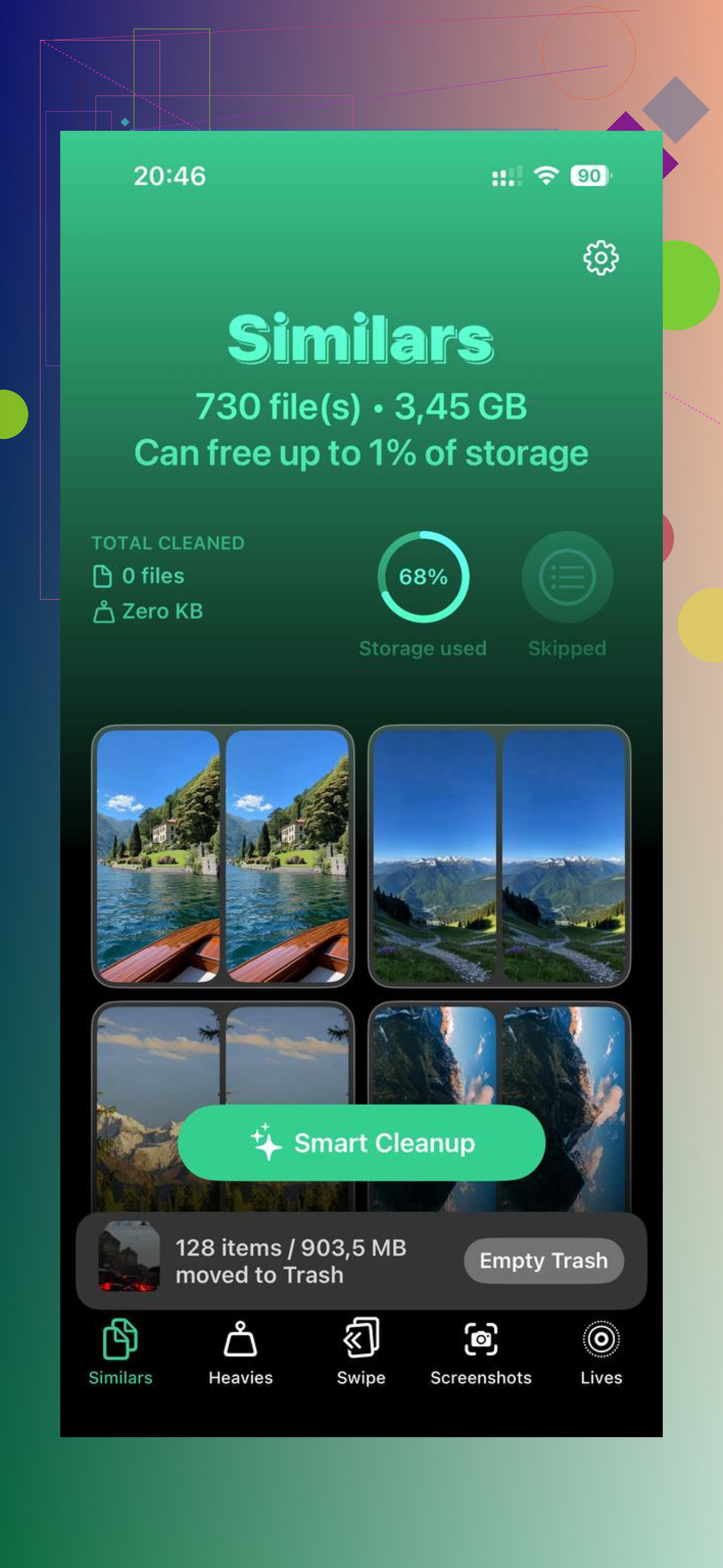
What stood out to me was the layout. It grouped media by file size, so I could see what was hogging storage without digging through menus for an hour. It also showed screenshot sizes one by one, which sounds small until you realize how many junk screenshots pile up. I had way more than I thought, lol.
There’s also a similar photos section. I take three or four versions of the same pic all the time and forget about them. It caught a bunch.
The other thing I cared about was privacy. It handled the scan on the device, so my photos weren’t being shipped off somewhere. After I cleared around 15GB, the phone felt normal again. Less lag, fewer crashes, camera launched fast agian.
If your ‘Applications’ number looks way too big, it’s usually cache and app data, not some mystery install you missed. Start with offloading, clear cache where the app allows it, then delete and reinstall the stubborn ones. That’s the shortest path I found.
10 Likes
No, not in the way the Storage screen makes it sound.
“Applications” is a total. It includes the app file plus its documents, downloads, offline media, and temp junk. You do not get a hidden button to erase only the app’s storage while keeping every app untouched. iOS does not expose that cleanly for most apps.
I agree with part of what @mikeappsreviewer said, but I’d push back on one thing. Delete-and-reinstall is not always the best move for apps you use daily. Some apps keep drafts, downloads, or local files poorly. You lose stuff, then spend an hour signing back in. Not worth it unless the app is a known storage hog.
Better approach for daily-use apps:
- Check the app’s own settings for Downloads, Storage, or Reset Cache.
- Remove offline content first. Spotify, Netflix, YouTube, Podcasts, Google Maps, all of these eat gigs fast.
- Clear Messages attachments. Old videos in chats are sneaky.
- Review Files app, On My iPhone. Apps dump data there.
- Set Messages to keep for 1 year or 30 days if you need space.
- Turn on Optimize iPhone Storage for Photos if photos are a big chunk.
For numbers, I’ve seen one social app show 1 GB app size and 8 GB data. The data is the issue, not the app binary.
If you want a faster way to find media junk, Clever Cleaner is worth a look. It helps spot duplicate photos, big videos, and screenshots fast. Also, people discussing free iPhone cleaning apps had decent things to say here, what iPhone users say about Clever Cleaner for freeing up storage.
So, short answer, no, you usually cannot delete “Applications” storage without affecting the app in some way. You have to trim app data, offline files, or cache. That’s the part filling up your phone, not the icon itself.
Not really, at least not in the clean way people expect.
What iOS calls “Applications” is kinda a bundle category. You can’t just tap one magic button and say “delete the app junk but keep the app exactly as-is.” Apple mostly leaves that control to the app devs, which is… annoying, honestly.
I agree with parts of what @mikeappsreviewer and @byteguru said, but I think people sometimes over-focus on caches and forget the boring stuff that quietly eats space every day:
- voice notes in Messages
- edited copies in Photos
- downloaded email attachments
- podcast episodes marked as “saved”
- browser reading lists with offline pages
- app data synced from iCloud back onto the phone
That last one gets missed a lot. You delete some local stuff, then iCloud helpfully puts it right back. Super fun.
A few things I’d check that weren’t already covered:
- Mail app: if you use the built-in Mail app with a huge account, sometimes removing and re-adding the account shrinks local mail cache
- Podcasts: set old played episodes to auto-delete
- WhatsApp/Discord/Slack type apps: manage storage from inside the app, especially media-heavy chats
- Files app: sort by size, not name. People almost never do this and then wonder where 12 GB went lol
- Notes app: scanned documents can get weirdly large
Also, restart the phone after cleaning. Sounds dumb, but iOS storage calculations can lag behind and not update right away.
If the real issue is photo/video clutter more than app binaries, Clever Cleaner is actually useful for spotting duplicates, screenshots, and large media fast. If you want a more detailed breakdown, this Clever Cleaner review for freeing up iPhone storage explains what it does pretty clearly.
So the short version: no, you usually can’t delete app storage without affecting the app somehow. But you can reduce what the app keeps, trim synced/downloaded junk, and attack the media clutter that’s probably making the problem look worse than it is. Apple makes this way more clunky then it should be.
Short answer: no.
What you can do is force iOS to shrink some app footprint without fully nuking your setup. One thing I’d add beyond what @byteguru, @waldgeist, and @mikeappsreviewer already covered is this: some built-in apps recalculate badly until after an iOS update or a sync cycle. I’ve seen Music, Mail, and Photos report bloated storage that drops later with no dramatic action.
A couple less-mentioned tricks:
- Check Settings > Accessibility > Spoken Content / Siri voices / dictionaries. Downloaded voices can be huge.
- Remove old device backups from Finder/iTunes on your computer if you sync locally. Not phone space, but people often confuse the totals.
- For streaming apps, lower download quality before re-downloading offline media. Same content, less storage.
- In Photos, shared library and recently deleted can make storage look “stuck” longer than expected.
I slightly disagree with the delete-and-reinstall advice as a default. Good for stubborn apps, sure, but for apps with local drafts or niche login flows, it can be more pain than space saved.
If the real culprit is media clutter around your apps, Clever Cleaner is decent for finding duplicates and giant videos fast.
Pros
- easy scan
- good for screenshots and duplicate photos
- helps surface large files quickly
Cons
- won’t magically clear protected app cache
- less useful if your storage issue is mostly Messages or app databases
- cleanup suggestions still need your review
So, no hidden “delete applications storage only” switch. iPhone makes you attack the data around the apps instead.