My iPhone storage keeps filling up even when I delete apps, photos, and videos, and I can’t figure out what’s causing it. System data seems to grow on its own, and now I’m missing updates and getting storage full warnings. I need help finding what’s taking up space and the best way to stop my iPhone storage from filling up again.
I ran into this on my own phone, and it looked random at first. It usually isn’t. When your iPhone storage jumps overnight, something is piling up in the background while you’re not paying attn.
The biggest mess is often photos and video. Every screenshot, screen recording, Live Photo, clip from a concert, or blurry duplicate from tapping the shutter too fast stays there until you remove it. I found whole batches of near-identical shots from trips and family stuff, and they were eating space for no good reason.
Apps do this too. Social apps, chat apps, and streaming apps keep cache files so they open faster next time. Fine in small amounts. Not fine when a few hundred MB turns into multiple GB. Offline songs, saved shows, podcast downloads, and app assets stack up quietly. You don’t notice until the storage warning pops.
Messages is another one people skip over. Photos, videos, GIFs, voice clips, all of it sticks around in old threads. I checked mine once and found a couple video attachments taking up a stupid amount of room.
Then there’s System Data. This is the annoying bucket. Logs, temp files, caches, update leftovers, iOS housekeeping junk. Some movement there is normal. Still, I’ve seen it swell way more than expected, and Apple doesn’t give you a clean little button to wipe it out.
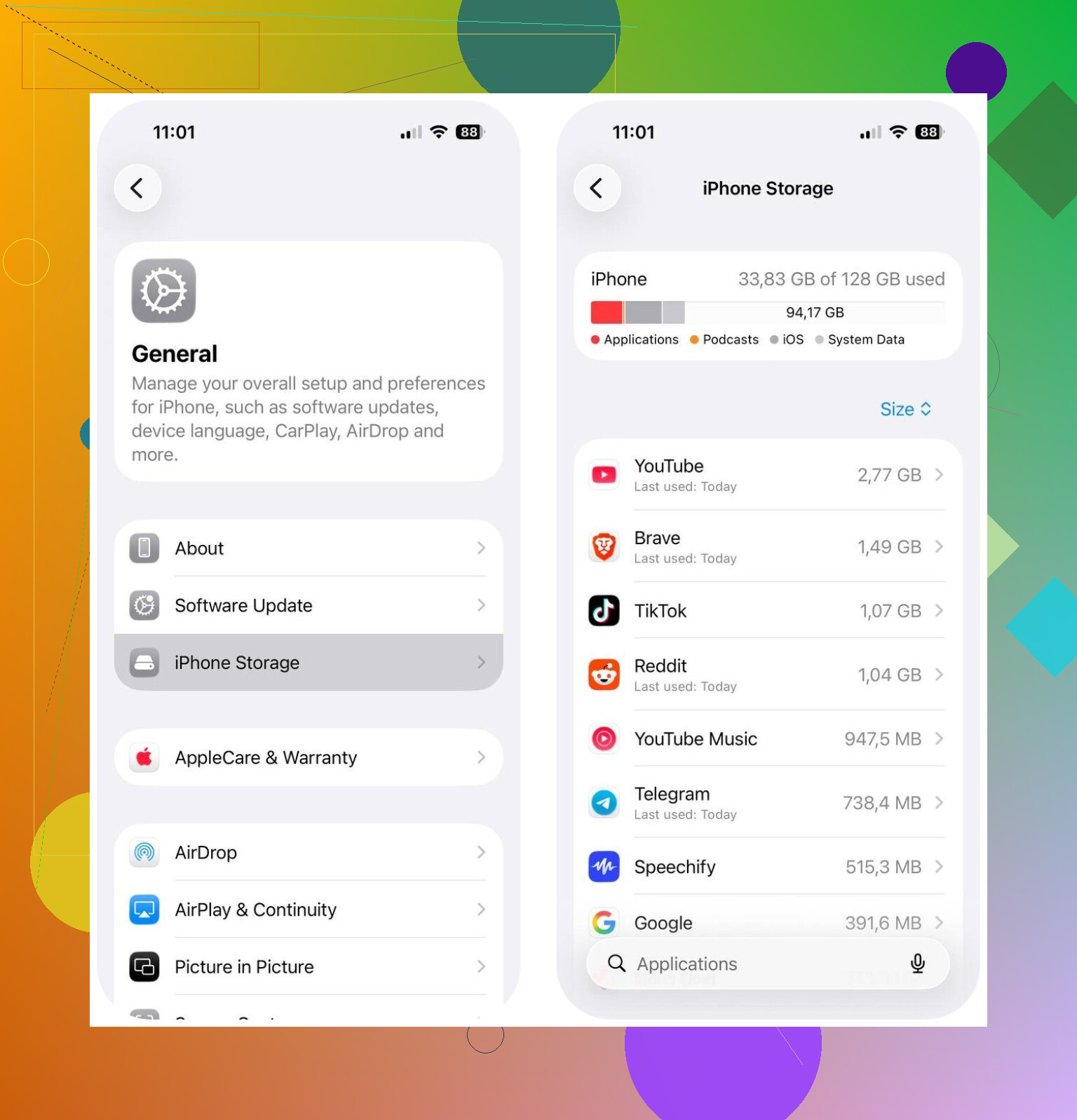
First thing I’d do is open Settings > General > iPhone Storage. That screen tells you where the damage is. Start with the biggest category, not with random guessing.
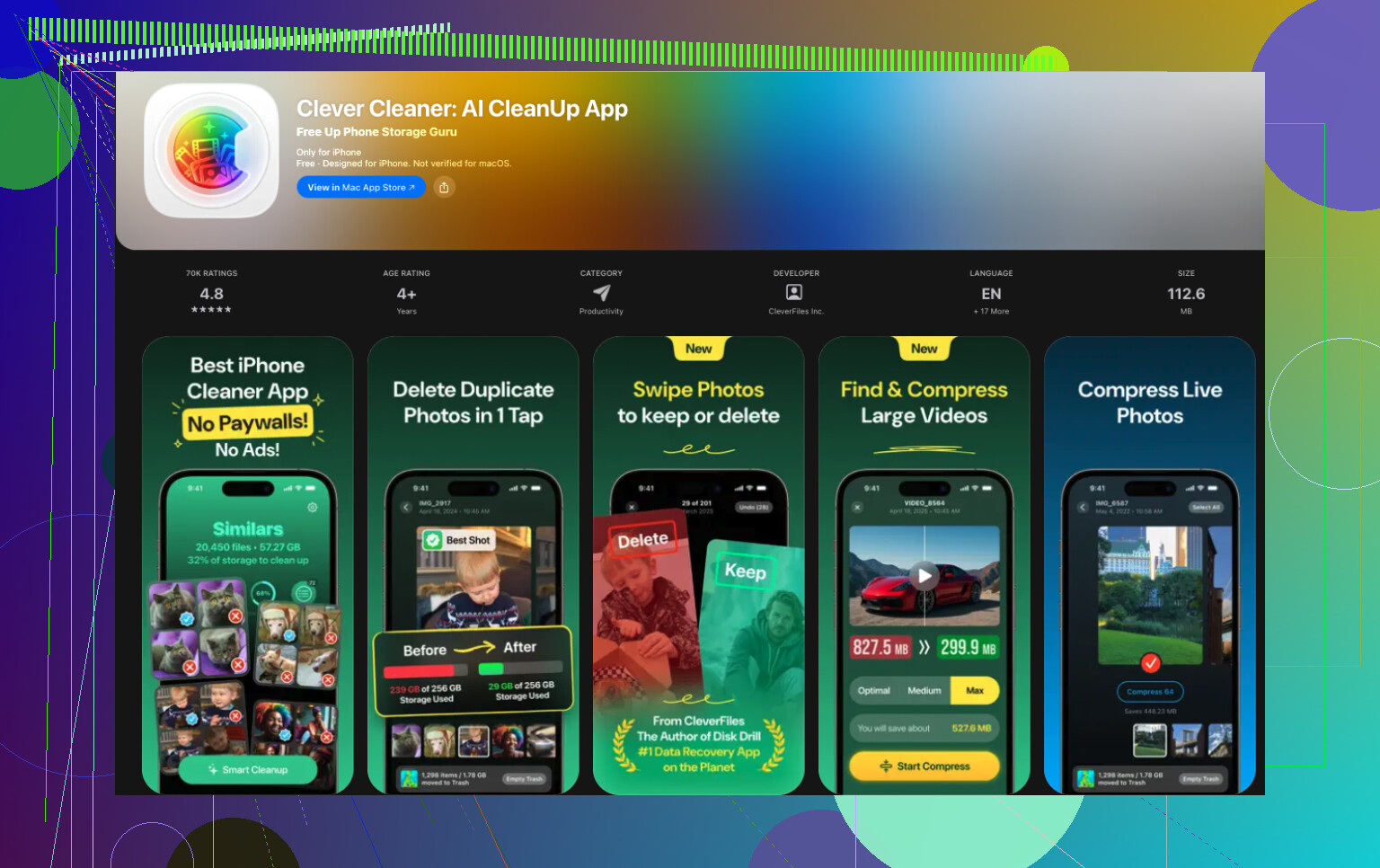
If Photos is near the top, I’d clean that first. I had better luck with Clever Cleaner. It focuses on media clutter, which is where a lot of iPhone storage gets burned.
What stood out for me, Apple’s Duplicates album only catches exact copies. That helps a bit, sure. The larger problem is all the almost-the-same photos you forgot about. Clever Cleaner picked up those too, and that saved me more space than the built-in Photos tools did.
It also helps with stuff like this:
- finding similar photos and picking a better one to keep
- surfacing large photos and videos fast
- grouping screenshots so you can wipe them in batches
- turning Live Photos into regular photos to cut storage use
I’ve seen people say they got back around 10 GB to 30 GB after cleaning similar shots, screenshots, and Live Photos. Mine wasn’t quite that high, but it was enough to stop the low-storage nonsense.
After photos, I’d check these next:
- big apps listed in iPhone Storage
- downloads inside streaming apps
- old message attachments
- downloads in the Files app
- Safari or other browser cache
From what I’ve seen, this almost never points to hardware. It’s usually slow buildup, photos, app cache, saved downloads, message junk, system leftovers, until your free space drops low enough for iOS to complain. A quick pass through iPhone Storage, then a media cleanup, usually gets back more room than people expect without tossing anything important.
8 Likes
What usually fixes this for me is finding the hidden stuff iPhone does not show well on the first pass.
I agree with @mikeappsreviewer on checking storage categories first. I disagree a bit on System Data being the main villain most of the time. On a lot of phones, the bigger issue is sync and download loops.
Check these:
- Mail app. Old attachments pile up. If Mail uses multiple GB, remove and re-add the account.
- Voice Memos. Long recordings are easy to miss.
- iCloud Photos stuck syncing. If Optimize iPhone Storage is off, your phone keeps full originals.
- Podcasts. Set old episodes to auto-delete.
- Files app, Downloads folder, On My iPhone folder.
- Failed iOS update files. Storage screen often shows iOS or update data.
Best reset for bloated System Data is this:
Back up iPhone.
Turn off iPhone.
Turn it back on.
If storage still looks broken, do an encrypted backup to Mac or PC, erase iPhone, restore backup. Annoying, yes. Effective too.
Also check Analytics logs in Settings, Privacy, Analytics. If you see tons of repeated panic or crash logs, storage creep makes sense.
For photo cleanup, Clever Cleaner is worth a look if media is the bulk of it. It helps spot similar shots faster than manual cleanup.
If you want a solid video on cleaning junk and storage hogs, try best YouTube guide for cleaning up iPhone storage.
If your free space drops below 5 GB, iOS starts acting dumb and caches get weirder. Keep 8 to 10 GB free if possble.

I’d actually start one step earlier than @mikeappsreviewer and @himmelsjager: figure out whether the storage is really growing or whether iOS is just reporting it badly for a while. I’ve seen iPhones sit there saying System Data is huge, then after a normal restart and a charge cycle it recalculates and drops by several GB. So before doing a giant cleanup spree, take screenshots of Settings > General > iPhone Storage once or twice over a day and see which category is changing.
A few things they didn’t really stress:
- Music app: downloaded tracks, especially if sync got weird
- WhatsApp/Telegram: their in-app storage managers matter more than deleting the app icon sometimes
- Safari Reading List offline saves
- Notes app with scanned PDFs or embedded images
- GarageBand/iMovie project files, these are sneaky little storage goblins
One thing I kinda disagree with is jumping straight to erase/restore unless the phone is truly broken. That works, sure, but it’s a pain and sometimes overkill. I’d first do this:
- Restart iPhone
- Update iOS if possible
- Turn off and back on iCloud Photos once only if sync is stuck
- Check app-specific downloads inside the apps
- Leave phone plugged in on Wi-Fi overnight
Also, if Photos is the main hog, Clever Cleaner is probly the faster route versus digging manually forever. It’s useful for similar shots, screenshots, and big videos, which is often where the “mystery” storage went in the first place.
If you want a solid breakdown on how to stop iPhone storage full alerts for good, that’s worth a read too.
Biggest tip: keep at least 10 GB free. iPhones get weird when they’re packed to the ceiling, and then everyhting starts acting fake-random.
I’d check one thing none of the others really leaned on: Messages indexing bugs. Not just big attachments. Sometimes Messages keeps ghost storage after lots of forwarded videos, stickers, voice notes, or deleted threads. Go to Settings > General > iPhone Storage > Messages and inspect the subcategories. Then also change Keep Messages to 1 Year or 30 Days if you do not need ancient threads.
I slightly disagree with jumping too fast to “System Data is broken.” Sometimes it is, but often the real problem is one app rewriting cache over and over. Watch for apps whose size grows again within hours after cleanup.
My own order would be:
- Screenshot iPhone Storage morning and night
- Check Messages, Notes, Books, and browser downloads
- Look for apps with huge “Documents & Data”
- Offload one suspect app, reboot, recheck size
- Only then consider backup/erase/restore
Also, if you use Instagram, TikTok, Spotify, YouTube, or WhatsApp a lot, deleting and reinstalling can free more than “Offload App.”
On the photo side, @mikeappsreviewer and @andarilhonoturno are probably right that media is often the hidden bulk. Clever Cleaner is useful there.
Pros: fast duplicate/similar cleanup, easy big-video spotting, good for screenshot batches.
Cons: you still need to review results carefully, and it will not fix true iOS System Data bugs.
@himmelsjager also had a good point about sync loops. That’s one of the sneakiest causes.