I’m trying to find visually similar photos on my iPhone, but I can’t figure out if there’s a built-in reverse image search or an easy way to do it. I recently saved a picture and need help finding the original source and similar images fast.
iOS is a bit limited here. In the Photos app, Apple only catches exact duplicate images. If one photo has a slightly different face, angle, crop, or lighting, it usually will not land in the same duplicate group.
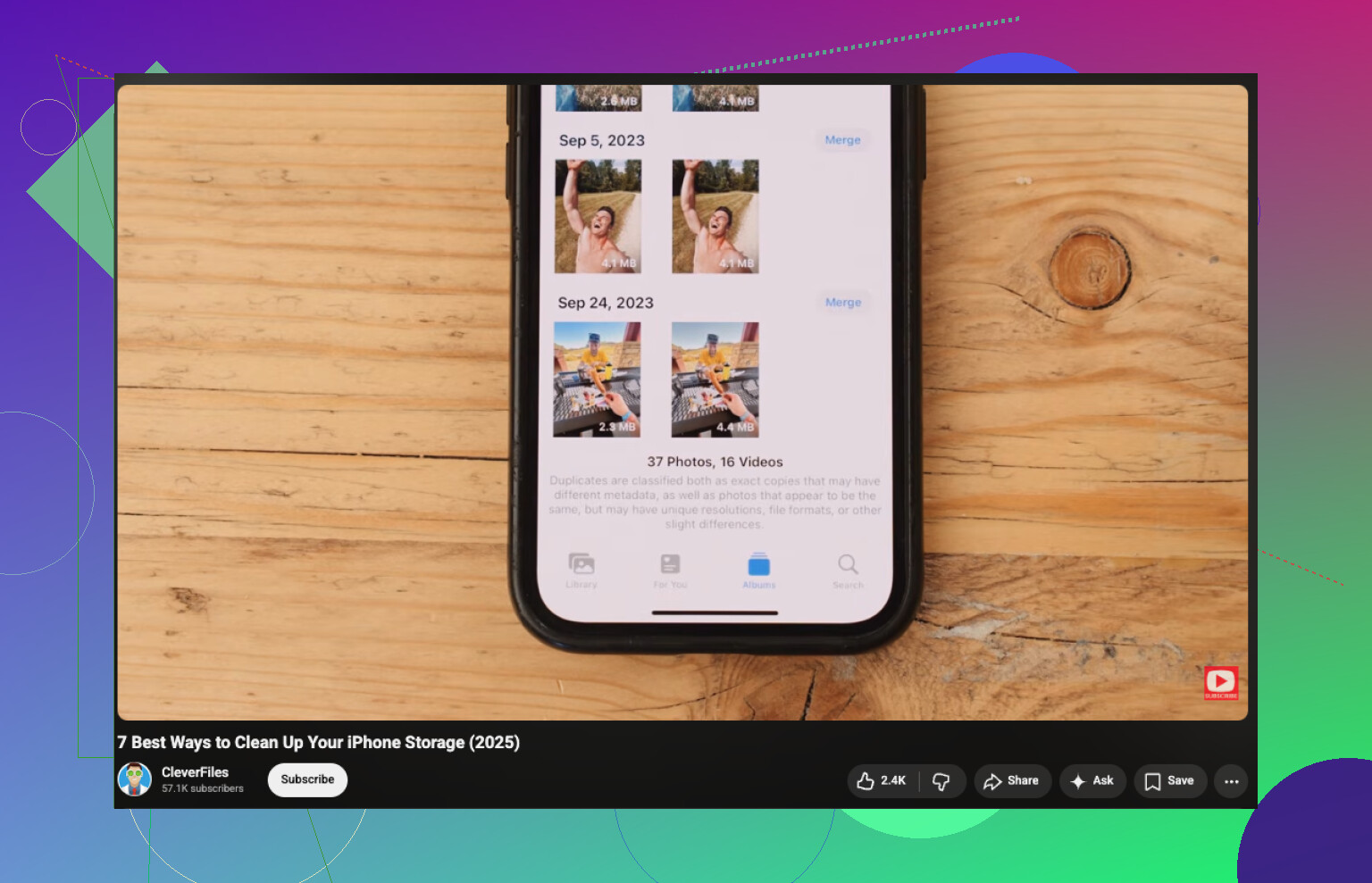
If all you need is the built-in duplicate check, do this:
- Open Photos.
- Scroll to Utilities.
- Tap Duplicates.
- Look through the matches and hit Merge on the sets you want to combine.
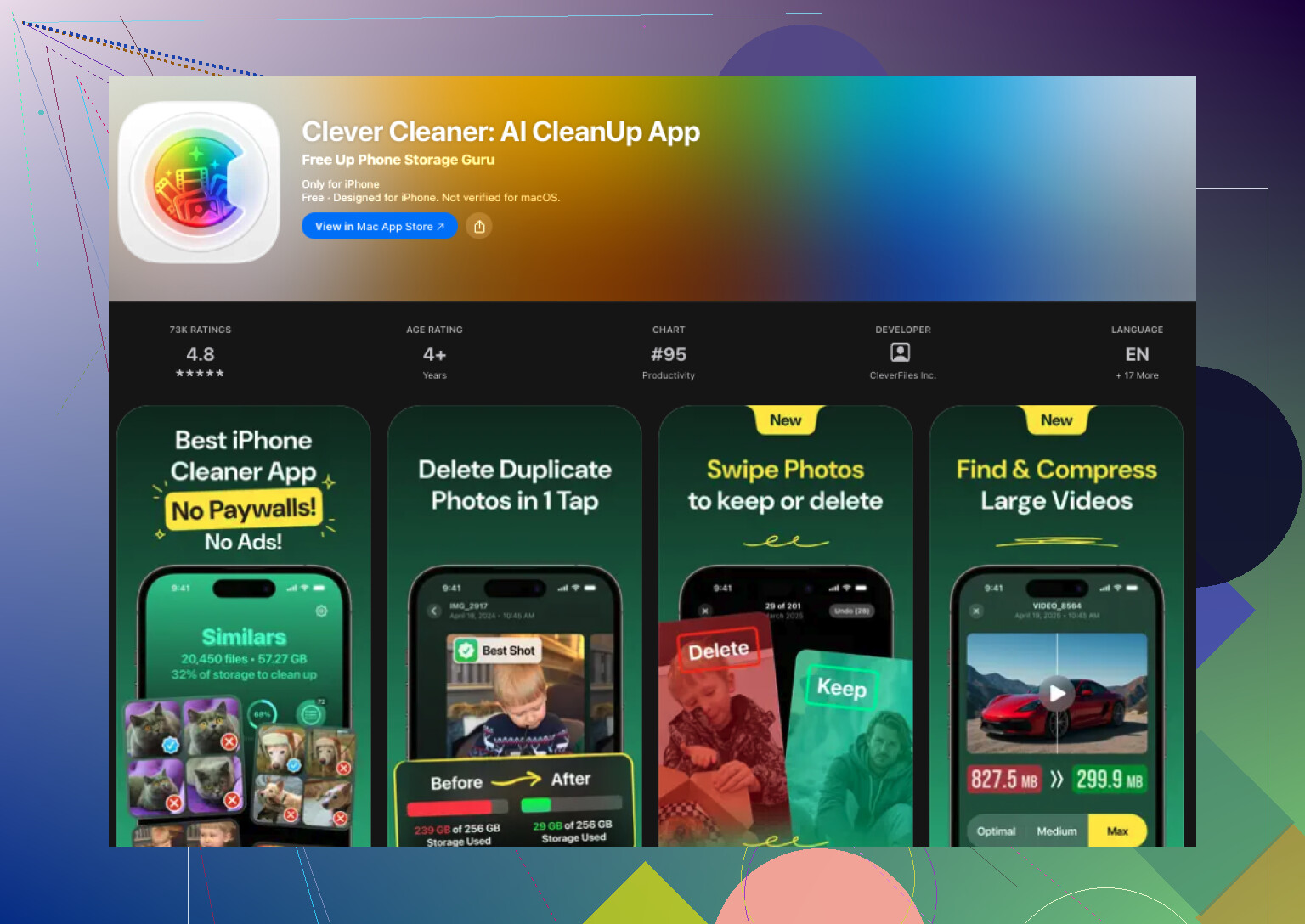
If you want near-matches too, you need another app. I tested a few because my library had a mess of repeat pet pics, food shots, and trip photos. The one I kept using was Clever Cleaner. I went in expecting the usual stuff, paywall first, ads second, cleanup third. It did not turn out like tht.
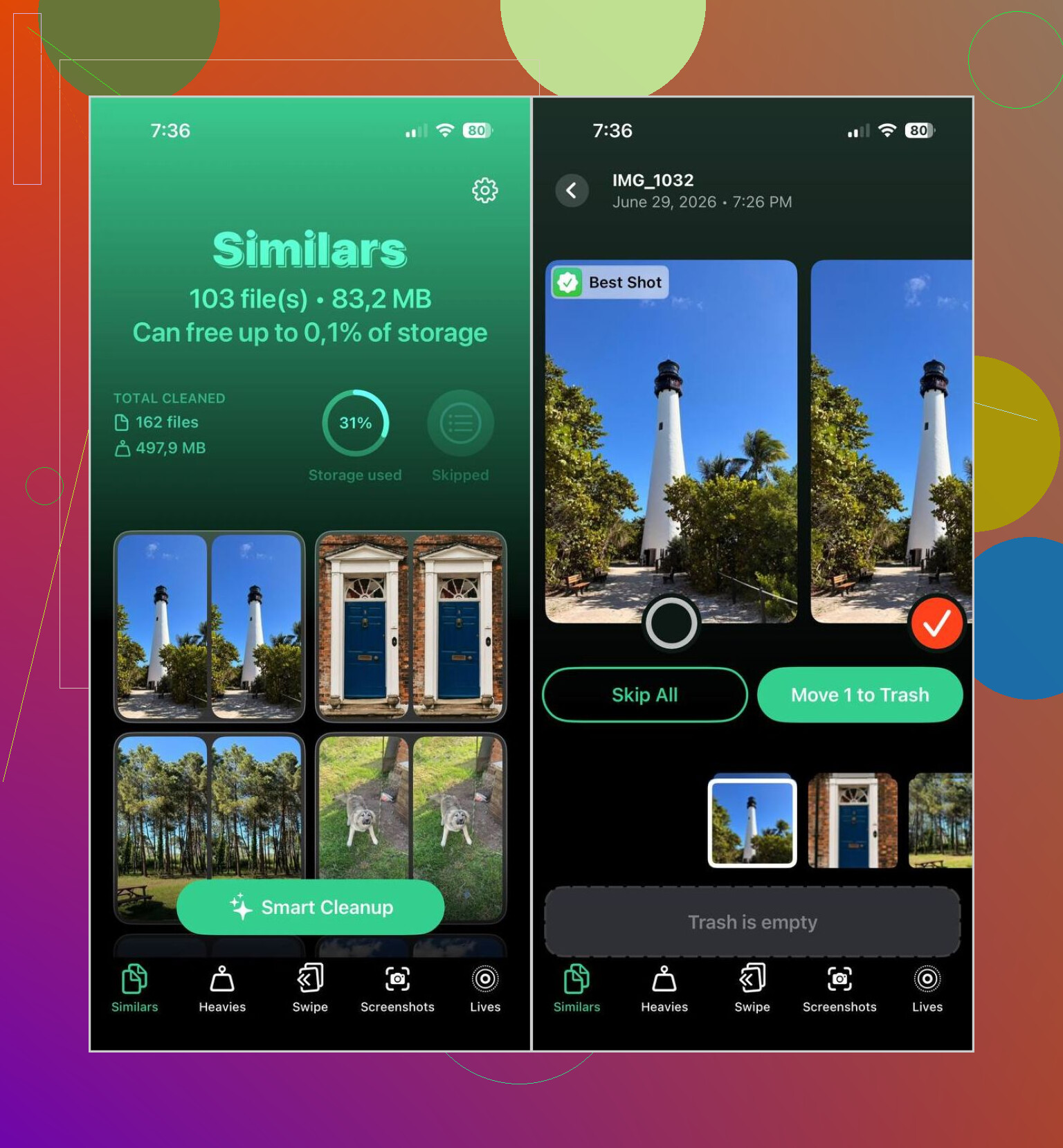
What stood out for me was the similar-photo grouping. It was decent at putting near-identical shots together, and the app’s Best Shot pick was right often enough that I stopped fighting it for routine pictures. I still checked kid photos and travel stuff by hand, because I do not trust any app with moments I care about. For random receipts, screenshots, grocery lists, mirror pics, it was fine.
Here’s the flow I used:
- Install Clever Cleaner from the App Store.
- Allow access to your photo library.
- Open the Similars section.
- Wait for the scan to finish.
- Open a group if you want to compare shots yourself, or use Smart Cleanup if you want it to sort things faster.
- Check which image the app marked as Best Shot. Change it if you disagree.
- Tap Move to Trash, or confirm the cleanup slider.
- Go back to Apple Photos and clear Recently Deleted if you want the storage back right away.
I ended up poking through the other sections too. A few were more useful than I expected:
- Duplicates, for exact same photos.
- Heavies, which puts your largest videos up front. Good if your storage vanished and you do not know why.
- Screenshots, which rounds up old screen grabs so you can wipe them fast.
- Lives, which turns Live Photos into regular stills and keeps the main frame.
On my phone, the big wins were old screenshots, giant videos, and clusters of similar shots I forgot I took. I cleared more space than I expected, ngl.
If you do not want another app on your phone, iOS still gives you a few slower workarounds:
- Use Search in Photos for people, cities, pets, objects, or events. Similar shots often show up close together there.
- Sort by date or by trip, because repeat shots are often taken seconds apart.
- Check Burst photos and keep the frame you want.
- Look through albums like People & Pets, Trips, or Media Types if you want to narrow the pile first.
I did try the manual route before using an app. It works, sort of. It gets old fast once your library is large. For a small camera roll, fine. For years of photos, I would not want to do it again.
12 Likes
If your goal is reverse image search on iPhone, Photos does not do it. Apple finds duplicates, not the original source on the web. So I’d split this into 2 jobs.
- Find matching or near-matching photos in your library.
- Find where a saved image came from online.
For the first job, I half-agree with @mikeappsreviewer. The built-in Duplicates album is fine, but it misses too much. Crops, edits, resized pics, screenshots of the same image, those often slip past it. If you want a better way to find visually similar photos on iPhone, Clever Cleaner is one of the few apps worth trying. It groups lookalikes better than Photos, especaily if your camera roll is messy.
For the second job, use a web-based reverse image search from Safari:
- Open Safari.
- Go to images.google.com.
- Tap the aA menu, request desktop website if needed.
- Tap the camera icon.
- Upload the saved image.
- Check “Visually similar images” and source pages.
You should also try Bing Visual Search, it sometiems finds pages Google misses.
If you want a solid walkthrough for finding related and visually matching photos on iPhone, this guide helps: how to find similar photos and pictures on iPhone.
Short version, Photos for exact dupes, Clever Cleaner for lookalikes, Google or Bing for the original source.
One thing I’d add to what @mikeappsreviewer and @himmelsjager said: if your main goal is finding the original source of a saved image, cropping the pic before searching often helps a lot. Sounds backwards, but if you trim out borders, text, app UI, or extra background junk, reverse image tools usually return beter matches.
Also, if the image is already in Photos, try this first:
- swipe up on the photo
- check for location, website name, or “Look Up”
- tap any detected object or landmark
Sometimes iPhone quietly gives clues without doing a true reverse image search.
For visually similar pics inside your library, yeah, iOS is kinda weak. I slightly disagree with relying on Photos search too much, because it’s more object-based than similarity-based. Great for “dog” or “beach,” not so great for “show me 14 almost identical selfies I took by accident.” That’s where something like Clever Cleaner makes more sense if you want actual similar photo grouping instead of just exact duplicates.
If storage cleanup is part of why you’re doing this, this iPhone storage cleanup video guide is pretty easy to follow.
Short version:
- original source on web: use reverse image search, preferably with a cropped version too
- similar pics on iPhone: use Clever Cleaner or another similar-photo app
- hidden clues: swipe up on the image in Photos and check metadata
Apple makes this way more annoying than it should be tbh.
One angle nobody’s mentioned clearly enough: check whether the image still has embedded metadata before you bother with search tools. If it came from Messages, AirDrop, or some apps, you might still get a filename, creation app, dimensions, or partial EXIF that hints where it originated. In Photos, tap the info panel and look for weirdly specific filenames or app names. Those clues can be more useful than a weak reverse-image result.
I’d also push back a bit on using Google as the default every time. For artwork, products, and social reposts, results can get noisy fast. Sometimes the fastest move is to drop the image into the site/app you suspect it came from and use that platform’s own search.
On the library-cleanup side, @himmelsjager, @cazadordeestrellas, and @mikeappsreviewer are basically right that Apple’s built-in tools are limited. Clever Cleaner is decent if your goal is grouping near-duplicates.
Pros of Clever Cleaner
- better than Photos at spotting lookalikes
- quick way to review clutter
- useful for storage cleanup too
Cons
- you still need to double-check important photos
- similarity grouping is not perfect
- another app with photo-library access, which some people hate
So my take:
- original source: inspect metadata first, then reverse search
- similar pics in your library: Clever Cleaner makes more sense than relying on Apple alone
- exact dupes only: Photos is enough
If the image is a screenshot, crop out the status bar and UI first. That alone can completely change the results.