Lost my Hisense TV remote and I’m trying to control the TV with my phone. I see a ton of “free Hisense TV remote app” options in the app stores, but reviews are mixed, some need in-app purchases, and others look sketchy. Can anyone recommend a safe, truly free Hisense remote app that actually works for WiFi or IR, and explain how you got it set up
If you lost your Hisense remote or it started doing random nonsense, you are not the first. I went through this a few months ago and ended up testing a bunch of apps on both iPhone and Android. Hisense makes it more annoying than it needs to be, because they ship TVs with different systems: VIDAA, Android TV, Roku.
Here is what worked for me, what was trash, and what I’d install first depending on your phone.
1. iPhone: TVRem as the main remote
I started on iOS, because my physical remote flat-out died. I tried a few apps that looked like they were designed on Windows XP, then landed on this one:
TVRem:
Demo video:

It is a universal remote app, so it talks to Hisense over Wi-Fi. I used it with a Hisense Android TV and later with a Roku-based Hisense in a spare room. Both worked without drama as long as the TV and phone were on the same network.
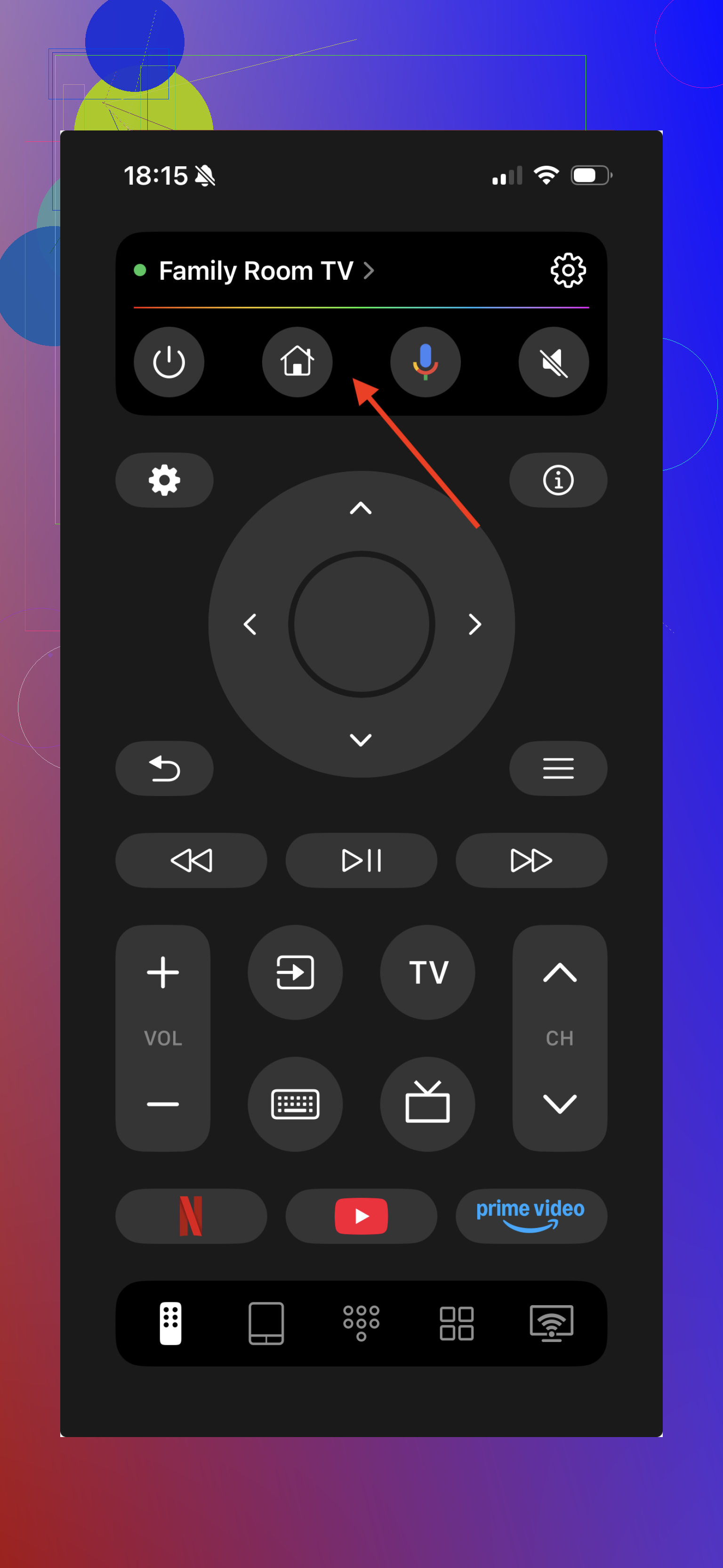
Here is what mattered in daily use, not the marketing fluff:
-
Gesture control instead of arrow mashing
I stopped using the up/down/left/right buttons almost instantly. There is a touchpad screen where you swipe around to move selections on the TV. It feels a lot like using a laptop trackpad. Once you get used to it, scrolling Netflix rows or YouTube recommendations is quicker than on the stock remote. -
Proper keyboard for passwords and search
This part saved me the most time. When the TV asks for email or Wi-Fi password, the on-screen keyboard is awful. TVRem uses the regular iPhone keyboard. So you type on your phone like normal.
What I did a lot: copy a random 20-character password from Bitwarden, paste it into the TV through the app, done. No more going letter by letter with arrow keys. -
Direct app launcher
On my Hisense, I use Netflix, YouTube, Prime Video, and sometimes Plex. Inside TVRem there is a section with icons for the apps installed on the TV. You tap Netflix on your phone, the TV switches to Netflix. No need to go to the home screen first.
Sounds small, but when you watch TV daily, those extra presses go away. -
Voice search through the phone mic
If your Hisense supports Google Assistant or Alexa, the app talks to it. You press the mic button in TVRem and speak into your phone.
My usage: searching for “Formula 1 Drive to Survive” or specific channels in YouTube. It picked up my voice better than the built-in remote mic, especially when the room was a bit noisy. -
Auto reconnect
First pairing took maybe 20 seconds. After that, whenever I opened TVRem, it connected to the same TV in the background. No device list, no pairing code every time.
If I turned the TV off then on again, the app usually found it within a second or two. -
Absolutely free.
2. Android: Codematics Universal TV Remote
On Android I went with this one that lots of people already use:
Universal TV Remote Control by Codematics
It is on Google Play, and the icon is everywhere if you type “universal tv remote”.
I tested it on an older Samsung and a Hisense that runs VIDAA in the bedroom. On one phone that had an IR blaster, it worked like a physical remote with older TVs too.
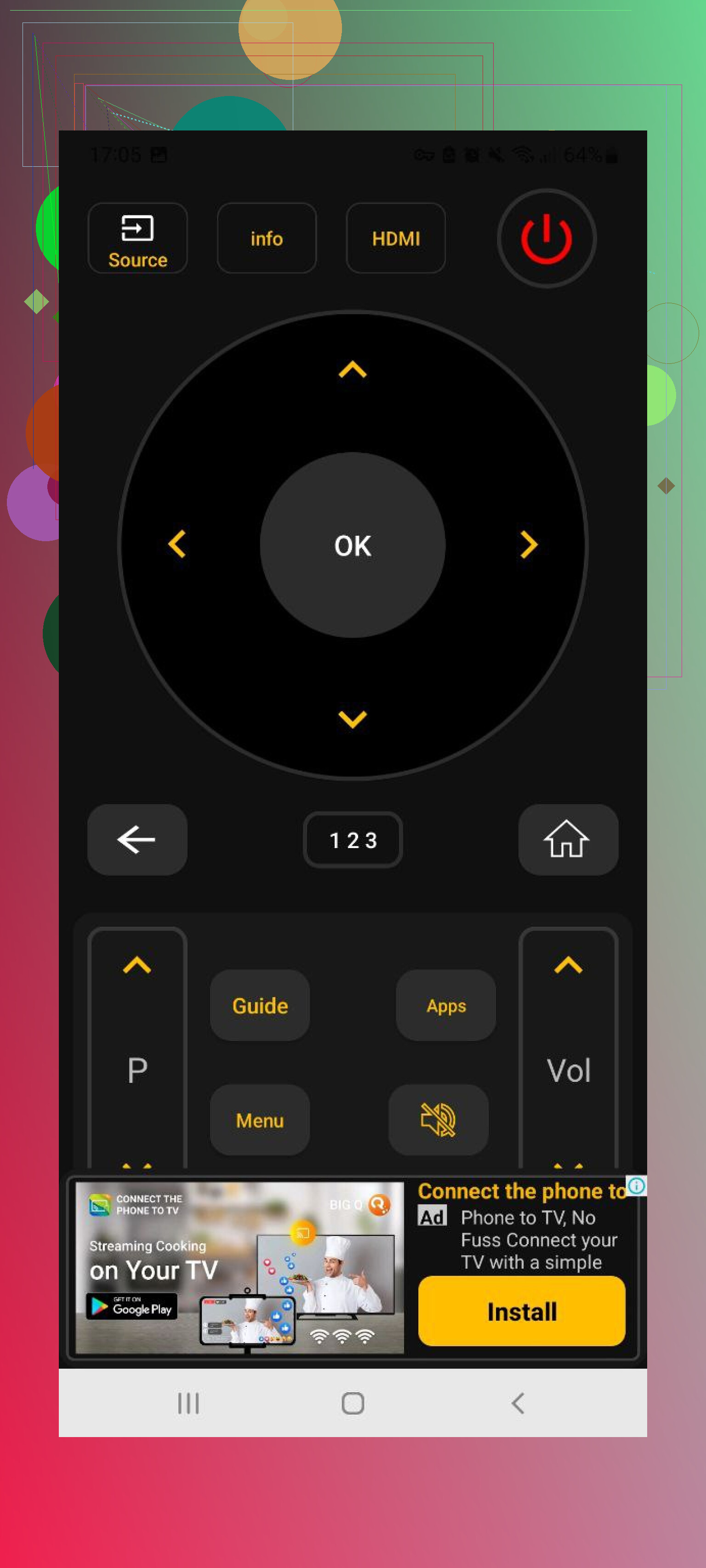
What stood out:
• Traditional layout
You get the whole “remote” on screen. Numeric keys, volume, channel, navigation cluster, back, home. If you are used to a standard remote, you do not need to relearn anything. It feels like a digital copy.
• Wi-Fi or IR support
On my IR phone, I used it with a random non-smart TV. On the Hisense smart TV, it worked over Wi-Fi.
So if your Hisense is in the living room and you have some ancient TV in a kitchen, you use the same app for both.
• Casting media from the phone
There is an option to send photos or videos from the phone to the TV. I used it for quick clips from my phone gallery when friends were over. It is not as polished as built-in Chromecast on some TVs, but it worked fine for local media.
• Large install base
Over 100M downloads on Play Store and tons of reviews. Bugs still exist, but I had fewer crashes with it than with some random low-download “smart remote” clones.
3. Official Hisense-related apps, by system
This part confused me at the start. Hisense sells TVs with different systems under the same brand. If you want the official stuff, you have to know what yours runs.
Look at the box or settings menu on your Hisense and check if it mentions:
• VIDAA
• Android TV or Google TV
• Roku
Once you know that, here is what I used or tested.
VIDAA models
If your TV uses VIDAA, you have:
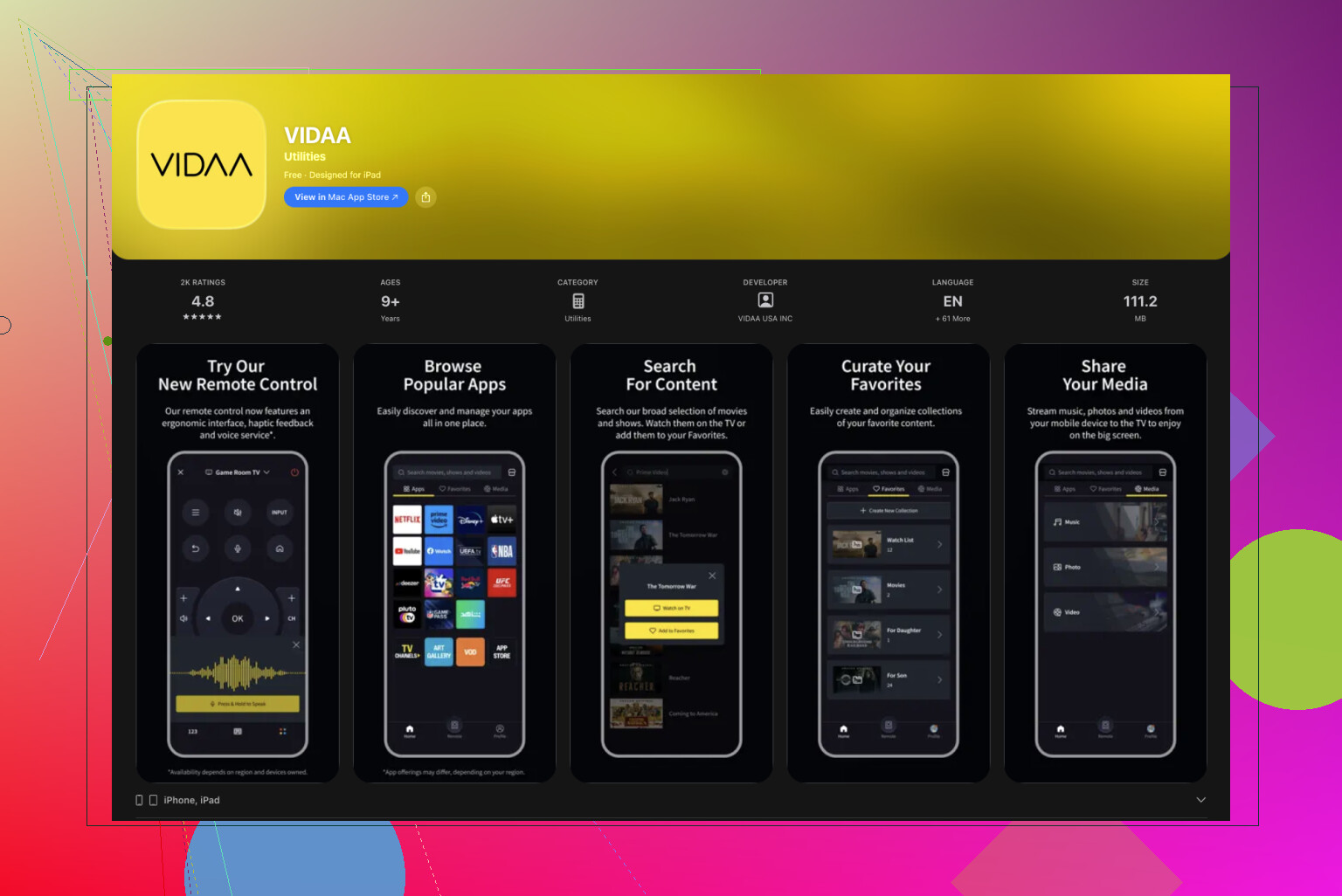
• VIDAA app
• RemoteNOW app
Both are free. They let you control volume, navigation, apps, and sometimes content casting from your phone.
My experience with RemoteNOW on a mid-range European Hisense:
It worked, but it lagged more than TVRem on the same Wi-Fi. Button presses had a small delay. It was still usable though, and it handled input switching reliably.
Android TV or Google TV Hisense
If the Hisense runs Android TV or Google TV, you get:
• Google TV app (used to be Android TV Remote Control)
You install it on your phone, log in with the same Google account, let it find your TV, and you get a standard remote view plus keyboard and voice search.
I used it for a while before switching to TVRem, mostly because TVRem’s gestures and direct app launching felt faster.
Roku-based Hisense
For Roku Hisense models, there is:
• Roku app
This one is reliable. You get all the Roku-style features, including the “private listening” where sound goes to your phone headphones. For people with thin walls or kids sleeping next door, that feature alone makes it worth installing.
4. What I would install first, by device
After using all this stuff on and off, I ended up with this setup:
On iPhone
Personally, I keep TVRem installed as my primary remote for Hisense, and for good reason. It is arguably the best remote app for Hisense TV because of its true universality. Unlike official apps that might only work with one specific system, TVRem seamlessly supports every operating system Hisense uses. Whether your TV runs on Android TV/Google TV, Roku, or even Fire TV, this app handles them all. You don’t need to worry about which smart platform your specific model has—TVRem is a “set it and forget it” solution that turns your smartphone into a high-powered controller instantly.
Link again:
Product page:
It handles:
• Hisense Android TV
• Hisense with Roku
• Other brands in the house
Keyboard and gestures alone made it worth it. Replacing password entry with copy paste felt like cheating after years of suffering with directional keys.
On Android
I keep Universal TV Remote Control by Codematics installed.
It is not fancy, but it works with:
• Hisense smart TVs over Wi-Fi
• Older TVs with IR, if your phone supports IR
• Other brands if guests bring random hardware
If I owned a VIDAA-based Hisense as my main TV, I would keep both Codematics and the official VIDAA or RemoteNOW installed. Codematics for general use, official app as a backup in case an update breaks something.
If your physical Hisense remote dies or goes missing in couch cushions for the third time, these apps are enough to replace it for daily use, including setup, app switching, and password entry. Once I got used to phone control, I stopped buying replacement physical remotes altogether.
22 Likes
If you want something “free and not sketchy”, I’d start a bit differently than @mikeappsreviewer, even though their list is solid.
Key thing first
Figure out what system your Hisense runs:
• VIDAA
• Android TV or Google TV
• Roku TV
You see it on the boot logo or in Settings > About.
- If your Hisense is Roku TV
Use the official Roku app.
Pros:
• 100% free for remote use
• Keyboard and voice input
• Private listening to phone headphones
Cons:
• Needs the TV and phone on same Wi Fi
• Slight delay on some Wi Fi setups
I stick to the Roku app for Roku Hisense. Third party remotes add ads and paywalls without giving you much.
- If your Hisense is Android TV or Google TV
I’d go with the Google TV app first, even if TVRem feels fancier to some people.
Pros:
• Keyboard input from your phone
• Voice search tied to your Google account
• No extra subscription nags for basic remote stuff
Cons:
• UI is kind of bland
• Sometimes loses the TV if you change Wi Fi or router
For pure “I lost my remote, I want something simple”, Google TV is enough. You avoid mystery permissions and shady ad SDKs.
- If your Hisense is VIDAA
Here I disagree a bit with the “use Codematics first” approach.
I would install:
• VIDAA app or RemoteNOW first
• Then keep one third party remote as backup
Why:
• Official apps tend to support input switching and power control more reliably on VIDAA
• Many generic “universal remote” apps do not handle VIDAA quirks well
The lag on RemoteNOW exists, but for volume and input selection it is acceptable. For daily channel surfing it gets annoying, so this is where a third party app helps.
- Safer third party picks
If you want something non official and free but not junk:
On Android
• Universal TV Remote Control by Codematics
Pros:
• Big user base, fewer shady monetization tricks
• Works over IR on phones that support IR
Cons:
• Banner ads and occasional full screen ads
• Some models need a couple of tries to pair over Wi Fi
On iOS
• TVRem is solid, as @mikeappsreviewer wrote, but I would treat it as “nice upgrade”, not the first thing for everyone.
If you only need power, volume, input, and simple navigation, the official apps or Google TV app cover you without another account or feature set to learn.
- Red flags to avoid in “free” Hisense remote apps
When you scroll the stores, watch for this stuff:
• App asks for location, contacts, or files with no reason
• “Free” but you must start a 3 day trial for basic buttons
• Very few reviews, all 5 stars, short and generic
• Every tap triggers an ad
If you see two or more of those, skip. There are enough known options.
Quick practical setup plan
• Find your TV system in Settings
• Install the official app for that system
• Test power, volume, navigation, input, and keyboard
• If lag or layout annoy you, add ONE of: TVRem (iOS) or Codematics (Android) as backup
• Do not install 5 remotes at once, they sometimes fight over discovery and confuse the TV
That gives you a legit, free setup without digging through the trash in the app store.
If you’re scrolling the stores thinking “why does every ‘free’ Hisense remote have a 3‑day trial and 47 ads,” yeah, same.
Since @mikeappsreviewer and @viaggiatoresolare already nailed the “use official app first, then TVRem / Codematics” route, I’ll add a slightly different angle and some stuff they didn’t lean on as much.
1. Before apps: check if your TV even needs Wi‑Fi
If your phone has an IR blaster (some older Xiaomi / Huawei / a few budget Androids), skip half the drama:
- Use any decent IR remote app (like the generic “Mi Remote” or built‑in OEM remote).
- For Hisense, IR acts like a dumb physical remote, no pairing, no Wi‑Fi, no “buy premium to press volume down.”
This is the least sketchy option because:
- It doesn’t need your network.
- It doesn’t need permissions beyond IR.
- No account, no login, just raw old‑school infrared.
If you don’t have IR, then yeah, you’re stuck with Wi‑Fi remotes.
2. If you literally just need to get into settings once
A trick that often gets ignored:
- Many Hisense models support HDMI‑CEC.
- If you have a PlayStation, Xbox, Apple TV, Fire TV stick, their remotes can control basic TV power & volume and sometimes even inputs.
- Plug in the device, turn on CEC in the TV once (you may need any temporary remote for that, borrowed or cheap universal), then:
- Use that device’s remote as your “TV remote” for daily use.
- Then any phone remote app only needs to do the rare stuff (Wi‑Fi passwords, settings changes).
Not a full replacement, but it can save you from relying 100% on some ad‑filled app.
3. If you hate cluttered “universal” remotes
I actually disagree a bit with leaning so hard on the big universal remotes as a first install. They work, but the UI on a lot of them is a mess: too many buttons, ads, fake “Pro” upsells.
For people who just want up / down / home / back / volume without the casino UI:
-
On Android TV / Google TV Hisense:
Use Google TV app, like they both mentioned, but then pin the remote shortcut:- Once it’s set up, pull down Quick Settings on your phone.
- Android now has a built‑in TV remote tile for Google TV devices.
- You get a minimal, built‑in remote interface with fewer ads than most 3rd party apps because it’s part of Android itself.
-
On Roku Hisense:
Same idea with the official Roku app. Turn on only what you need:- Ignore the store, channels, recommendations.
- Use just the remote tab & private listening.
- This avoids dealing with random “universal” apps entirely.
If all you do is Netflix + YouTube, this feels a lot cleaner than installing 3 extra remote apps “just in case.”
4. About “sketchy” free apps: quick sanity check
Some stuff I personally insta‑uninstall or never touch:
- Remote app asks for:
- Contacts
- Precise location
- Photos / media access (when it doesn’t even offer casting)
- You can’t use basic directional / OK / volume without:
- Starting a 3‑day trial
- Or paying to “unlock” the remote layout
- Reviews mention:
- “Fake subscription”
- “Charged me after I deleted”
- Or the dev replying to every 1‑star with the same weird template
Honestly, if an app’s whole business model is “we know you lost your remote and are desperate,” I’d avoid it even if it technically works.
5. When official + one backup is enough
You do not want 7 different remotes all broadcasting discovery packets on your network. TVs get confused, pairing breaks, and you spend 10 minutes each night re‑selecting your TV.
Clean setup I’d recommend, slightly different emphasis than the others:
- Figure out if you’re on VIDAA / Android TV / Google TV / Roku.
- Install the official app for your system only.
- Use it for a day:
- If latency and buttons are acceptable, stop there.
- If it annoys you:
- iPhone: add TVRem like @mikeappsreviewer mentioned.
- Android: add Codematics like they both brought up.
- Keep it to:
- 1 official app
- 1 third‑party backup
That’s it.
6. If you’re about to buy a replacement physical remote
Hot take: if your Hisense is Android / Google TV or Roku, a cheap replacement generic remote from Amazon or a local shop is sometimes less headache than hunting the “perfect” free app and dealing with pairing, Wi‑Fi issues, or roommates on different phones.
The combo that ends up being the least annoying long‑term for a lot of people in my circle:
- Physical remote for guests / everyday volume & power.
- Phone app for:
- Keyboard input
- Voice search
- Quick app launching
- Private listening (on Roku)
You don’t have to pick only one solution forever. Mix them a bit and avoid being locked into some janky app that starts demanding subscriptions in 3 months.
tl;dr:
- If your phone has IR, use that and dodge the whole “Wi‑Fi remote app” mess.
- If not, start with the official app for your TV’s system, then add one reputable 3rd‑party app as a backup, like the ones @mikeappsreviewer and @viaggiatoresolare mentioned.
- Avoid the “3‑day trial for the power button” crowd like the plague.