Top Data Recovery Software for Mac & Windows: Both Free and Paid Options
Losing important files can be a nightmare, whether it happens due to accidental deletion, formatting errors, or unforeseen system crashes. Fortunately, there’s a wide range of tools designed to assist you in retrieving those lost files. Here’s a breakdown of the best data recovery software available for both Mac and Windows users, highlighting their key features, limitations, and suitability for different needs.
1. Disk Drill (Mac & Windows)
Disk Drill is often celebrated for its ease of use and versatility, making it ideal for both beginners and experts in data recovery.
Pros:
 Intuitive, beginner-friendly interface.
- Supports recovery for over 400 file types across various storage formats.
- Comes with extra utilities like Recovery Vault for future data protection.
- Windows users can recover up to 500MB for free.
Cons:
- ✘ Limited functionality in the free version on Mac (can only preview files).
- ✘ Deep scans may take longer to complete.
- ✘ Full recovery capabilities require purchasing a license.
Verdict:
A robust and simple recovery solution with room for both experimentation and professional work. The free trial is great for lightweight tasks, and the premium version expands its versatility.
Useful Links:
- Disk Drill Homepage
- Disk Drill Review on Reddit
- Watch on YouTube: https://www.youtube.com/watch?v=IGEizr1WZ3E

2. EaseUS Data Recovery Wizard (Mac & Windows)
EaseUS stands out for its simplicity and AI-driven features, making recovery seamless for everyday users.
Pros:
- Features a straightforward three-step recovery process.
- AI-powered scanning enhances deep file recovery.
- Free tier allows up to 2GB of data recovery.
- Handles lost partition and RAW recovery efficiently.
Cons:
- ✘ The free version’s 2GB limit may be insufficient for recovering large files.
- ✘ Extended scans can take significant time to finish.
- ✘ Requires a paid plan to unlock full recovery capabilities.
Verdict:
EaseUS is an intuitive and powerful choice for general recovery tasks, ensuring high reliability for routine file retrieval.
Useful Links:
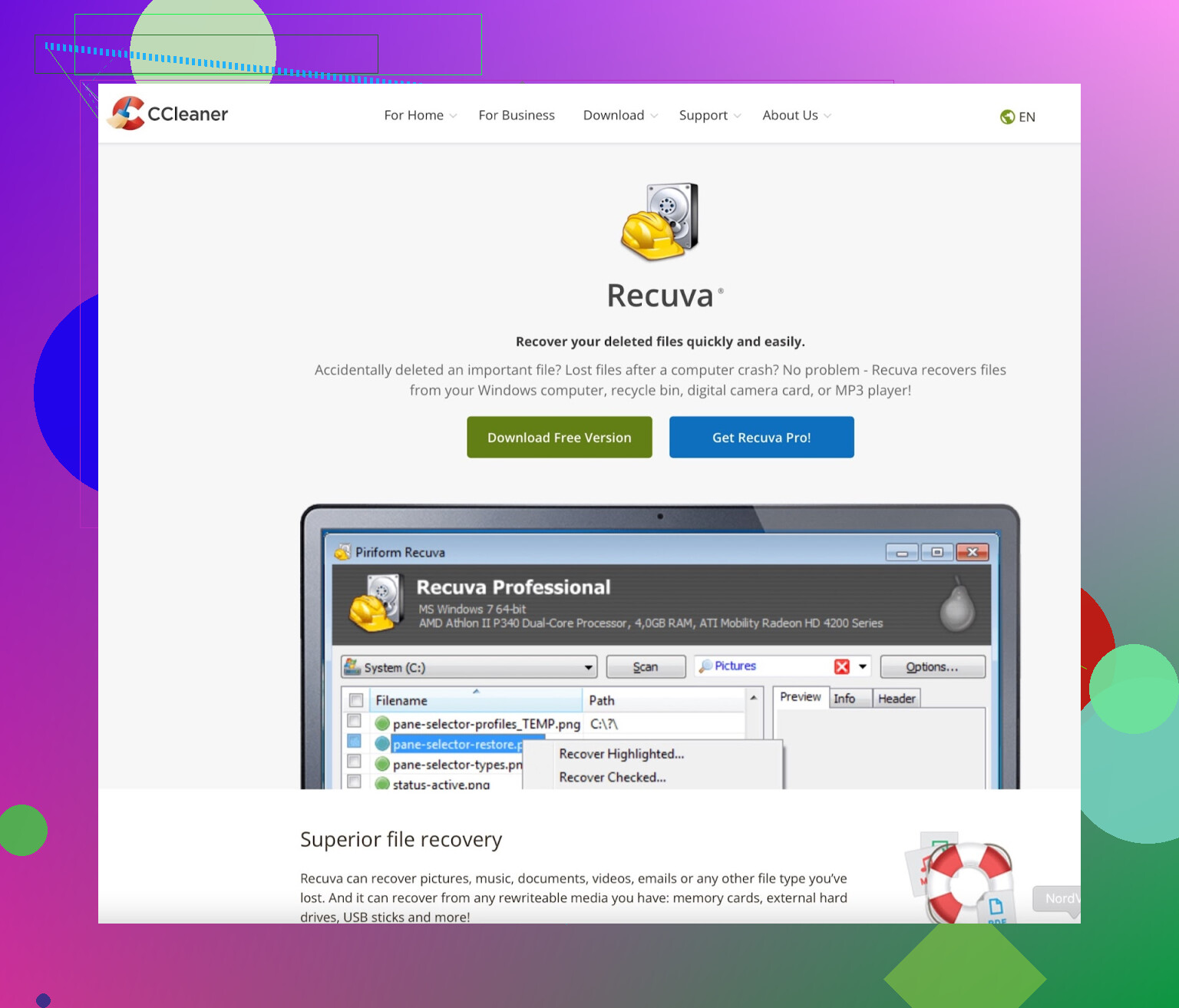
3. Recuva (Windows Only)
If you’re looking for a free solution that’s fast and light on system resources, Recuva is an excellent pick for Windows users.
Pros:
- Completely free with unlimited file recovery.
- Lightweight software that runs quickly.
- Comes with a portable version.
Cons:
- ✘ Not available for macOS users.
- ✘ Lacks more advanced data recovery features.
- ✘ May struggle with recovering heavily damaged files.
Verdict:
A solid, no-cost choice for basic recovery tasks, perfect for users needing an uncomplicated tool to retrieve lost files on Windows.
Useful Links:
4. Stellar Data Recovery (Mac & Windows)
Stellar is known for its robust recovery capabilities, particularly for multimedia files like videos and photos.
Pros:
- Advanced recovery for photos, emails, and videos.
- Compatible with a variety of storage devices.
- Free version allows recovery of up to 1GB of files.
- High success rate for recovering lost data.
Cons:
- ✘ The 1GB limit on the free version can be restrictive.
- ✘ Slow scanning process.
- ✘ Advanced features require higher-tier licenses.
Verdict:
An excellent all-around performer, Stellar is especially useful for those prioritizing recovery of multimedia content.
5. TestDisk & PhotoRec (Mac & Windows, Open-Source)
For tech-savvy users, this free and highly capable open-source tool is a fantastic resource.
Pros:
- Completely free to use, with no hidden charges.
- Excels at deep scanning and partition recovery.
- Works across multiple operating systems.
Cons:
- ✘ Operates via a command-line interface, making it challenging for beginners.
- ✘ Lacks user-friendly graphical tools.
Verdict:
A go-to solution for advanced users who need extensive recovery capabilities without spending a dime.
6. R-Studio (Mac & Windows)
R-Studio is a professional-grade tool, delivering unmatched precision and advanced functionality.
Pros:
- Highly capable in handling complex tasks like RAID recovery.
- Broad compatibility with various file systems and devices.
- Ideal for network recovery scenarios.
Cons:
- ✘ Steep learning curve with a less intuitive interface.
- ✘ Paid-only offering, with no meaningful free version.
Verdict:
Best suited for IT professionals and businesses dealing with large-scale or intricate data recovery projects.
7. Wondershare Recoverit (Mac & Windows)
Wondershare is particularly noted for its user-focused design and additional video recovery options.
Pros:
- Easy-to-navigate interface.
- Supports over 1,000 file formats.
- Special tools for recovering and repairing videos.
Cons:
- ✘ Free version is limited to 500MB of data recovery.
- ✘ Detailed, deep scans can be time-consuming.
Verdict:
An ideal pick for beginners and creatives who work with video content.
8. Ontrack EasyRecovery (Mac & Windows)
Preferred by professionals, Ontrack delivers premium features tailored for critical recovery scenarios.
Pros:
- Widely trusted by experts in data recovery.
- Includes RAID and email recovery in premium tiers.
- Free version permits 1GB of recovery.
Cons:
- ✘ Free tier limits file size to 25MB.
- ✘ Premium licenses can be expensive.
Verdict:
A dependable choice for enterprises and professionals tackling high-stakes data recovery jobs.
9. Prosoft Data Rescue (Mac & Windows)
Focused heavily on providing support for Mac users, Prosoft is outstanding at retrieving data from damaged drives.
Pros:
- Comprehensive recovery features.
- Includes drive cloning for working with compromised hardware.
- Well-optimized for macOS environments.
Cons:
- ✘ Pricing can be confusing, with pay-per-recovery options.
- ✘ Lacks lifelong license options.
Verdict:
Perfect for macOS users who require powerful yet focused retrieval tools.
10. MiniTool Power Data Recovery (Windows Only)
MiniTool caters to Windows users with a straightforward and efficient data recovery process.
Pros:
- Simple, no-frills interface.
- 1GB of free data recovery included.
- Great for minor recovery tasks.
Cons:
- ✘ Exclusively for Windows.
- ✘ Doesn’t handle advanced cases as effectively.
Verdict:
A dependable free solution for hassle-free recovery of smaller data loss scenarios on Windows.
Final Thoughts
Here’s a recap of the best tools for different recovery needs:
- For Beginners: Disk Drill, EaseUS Data Recovery Wizard, and Recoverit.
- For Free Options: Recuva (Windows) and TestDisk (Mac & Windows).
- For Professionals: R-Studio, Disk Drill, and Ontrack EasyRecovery.
- For Video Recovery: Wondershare Recoverit and Disk Drill.
If your data loss is minimal, start with one of the free tools. For more complex cases, consider investing in a premium option to ensure higher success rates.